Wifi access
Wifi access service is sold as an enhancement of room television service, so it cannot purchased by itself. Its expiration date will always be the same as the one of purchased/extended television service it is related to.
The credentials supplied once the wifi access service is purchased can only be used at the same time in a limited number of devices. If they are set up in any additional device beyond that limit the devices set up longer ago will be unable to connect to the hospital's wifi network. There is also a bandwidth limitation (connection speed) to avoid abuse, and if wifi access credentials are shared by several devices, available bandwidth will also be shared among them.
Wifi access configuration is very different depending on the device operating system, but as the quick start guide could be the following:
Connecting to wireless network hm.servicio.tv: Quick start guide
Any device, no matter it is a laptop, tablet or mobile phone, will need the following data:
- Wifi network to connect to: hm.servicio.tv
- Credentials (user and password) to authorizate connection: those printed in ticket or in digital receipt.
- Other additional parameters some devices may need:
- EAP type: PEAP
- Cipher type: AES
- Security type: WPA2 - Enterprise
- Authentication: MSCHAPv2
- Certificate: Use system certificate
- Domain: servicio.tv
- Anonymous identity: <leave blank>
- Identity/password: <user/password in ticket/receipt>
To get full details on setting up wifi connection in your device check your specific operating system:
We also recommend visiting our frequently asked questions about wifi section below.
Android devices configuration
Find wireless network hm.servicio.tv and fill in the configuration form using the values:
- EAP method: PEAP
- Phase 2 authentication: MSCHAPV2
- CA certificate: Use system certificate
- Domain: servicio.tv
- Anonymous identity: <Leave blank>
- Identity/password: <user/password in ticket>
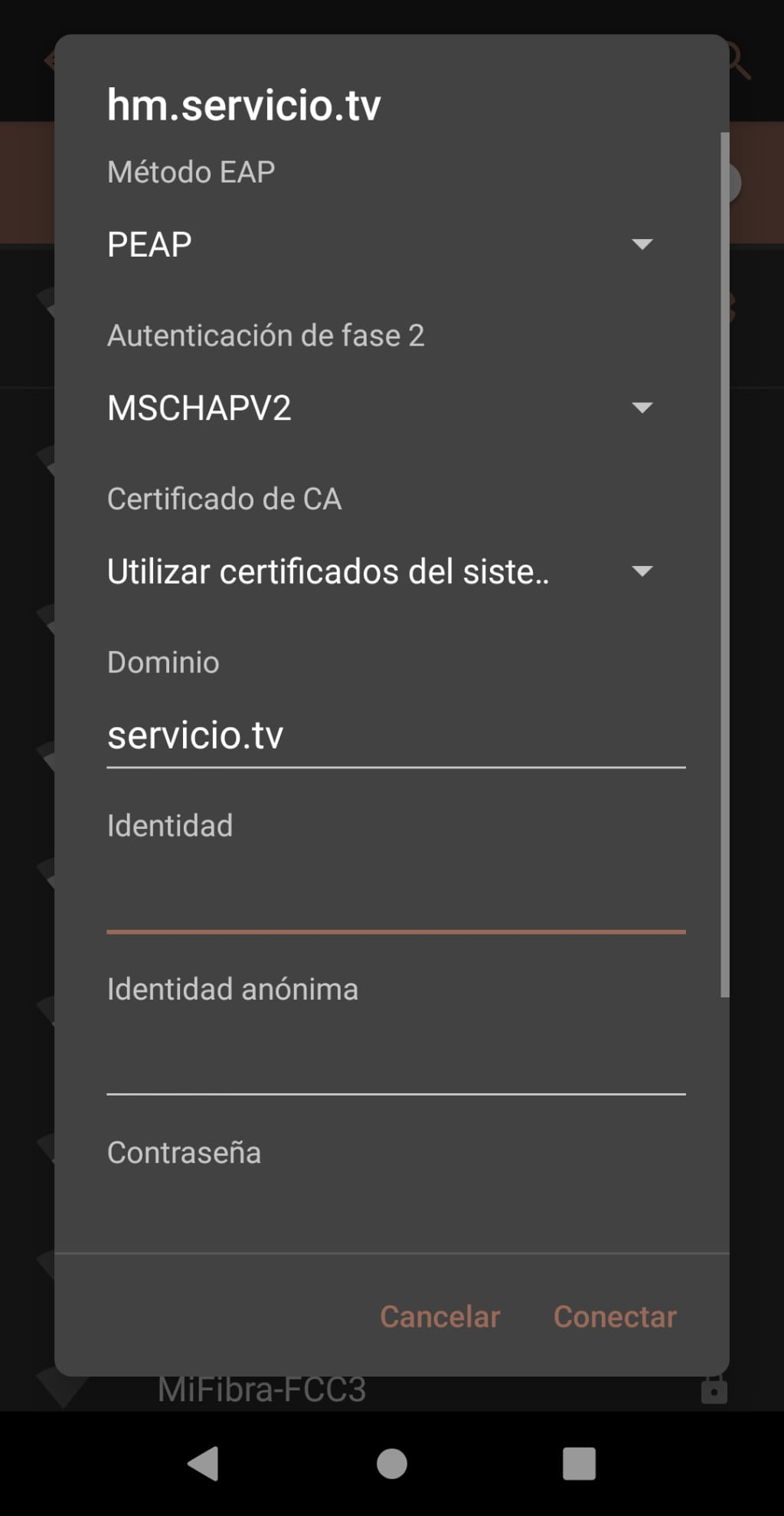
After all data has been filled in press "Accept" o "Connect" button to connect to Internet.
WARNING: The keyboard in some Android versions adds automatically a blank space after writing a dot (".") and it must be removed in order to write properly servicio.tv (without blank spaces), otherwise the device won't be able to connect to Internet.
Apple iOS (iPhone/iPad) devices configuration
Find wireless network hm.servicio.tv and the device will show the following form:
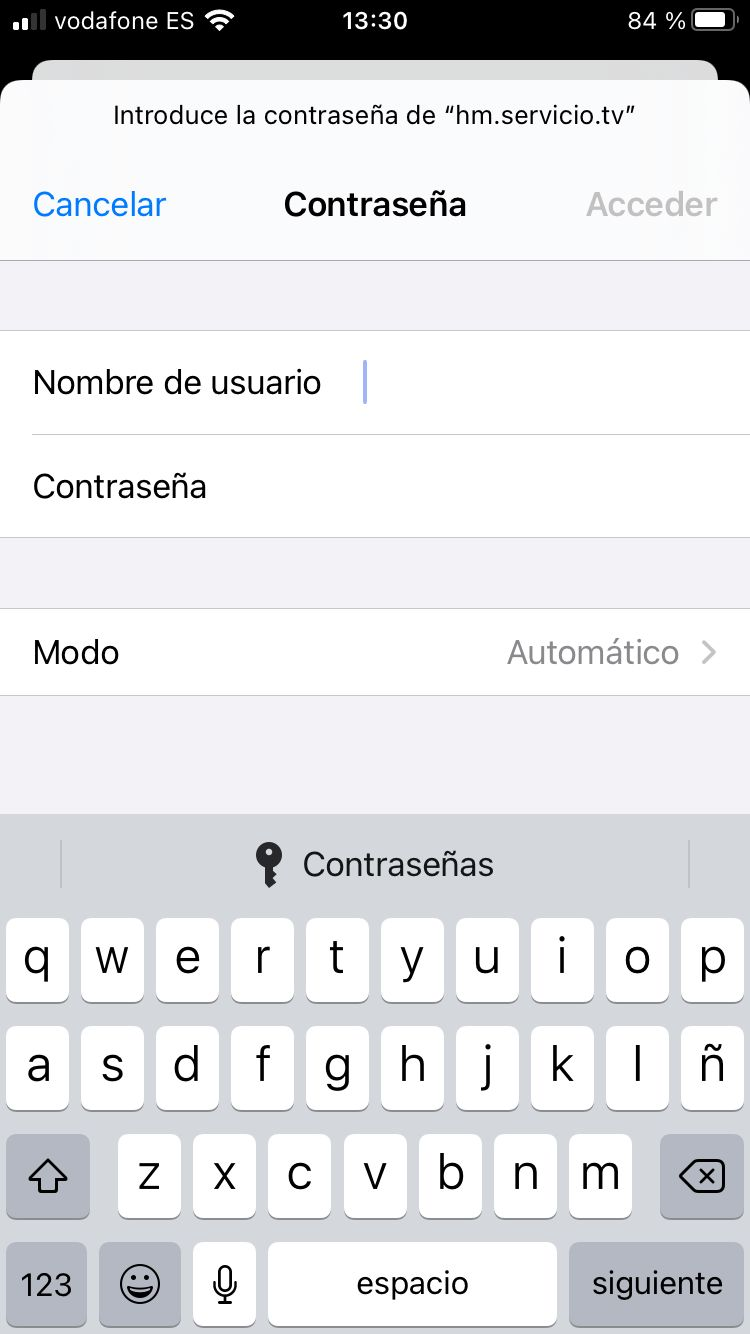
Fill in "Username" and "Password" textboxes with those values, you will find them in your purchase receipt/ticket.
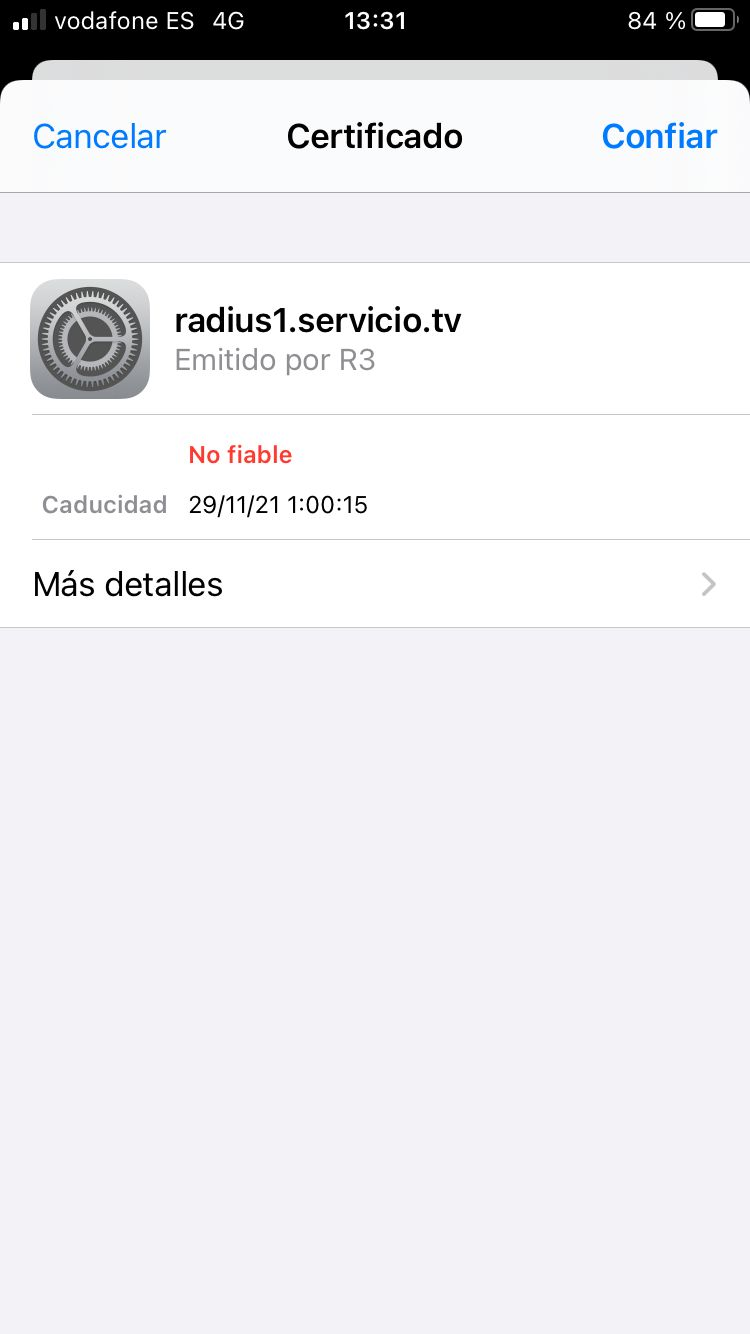
After that the device will ask for confirmation to trust a new certificate, issued by an entity ended by servicio.tv (in screenshot below is issued by radius1.servicio.tv). Pressing "Trust" button Internet access will be available instantly.
WARNING: If issuer's name doesn't end by "servicio.tv" DO NOT PRESS TRUST BUTTON
Microsoft Windows devices configuration
Find wireless network hm.servicio.tv selecting the "Network" icon in system tray (bottom right). A new pop up will show up:
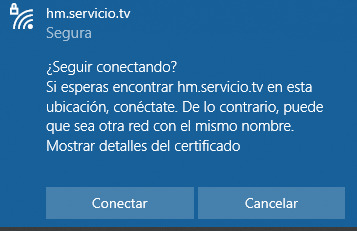
Fill in "Username" and "Password" textboxes with those values, you will find them in your purchase receipt/ticket.
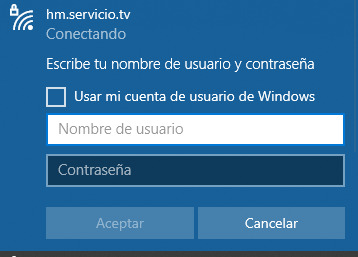
After all data has been filled in press "Accept" o "Connect" button to connect to Internet.
Frequently asked questions about wifi
Do I have to repeat all those configuration steps every time I want to connect to hm.servicio.tv network?
It depends on your operating system and/or network management application installed in your device. In most cases you will only need to configure wifi access in your first connection.
How many concurrent devices may I connect to hm.servicio.tv wifi?
Máximum number of connected devices is two. If you try to connect more devices with the same credentials only two of them will have Internet access.
Is there any limit on how many data can I upload/download to/from the Internet?
No, there is no limit on data amount.